
Turn Your Phone Into a Magic Wand
Tutorial
Too lazy to reach for the mouse? Discover how to use your phone's gyroscope to control your computer from a distance in this quick, beginner-friendly guide.
POSTS
Too lazy to reach for the mouse? Discover how to use your phone's gyroscope to control your computer from a distance in this quick, beginner-friendly guide.

I never knew this was possible until today. Seriously.
I was messing around with my gadgets—attempting to link my phone to my computer—when I stumbled upon a feature in an app called KDE Connect that made me feel like a total wizard.
It turns out, you can control your computer’s mouse using your phone screen (like a touchpad). That’s cool, but it’s not the best part. The best part is that you can use your phone’s Gyroscope to control the mouse.
That means you can wave your phone in the air, and your mouse cursor follows. It is the ultimate tool for the lazy tech enthusiast, and I am here for it.
In this guide, I’ll show you exactly how to set it up so you can lie in bed and close Netflix without moving an inch.
Before we start waving our phones around, let’s briefly talk about the tech that makes this possible. You’ve probably heard specs sheets brag about a "Gyroscope," but what does it actually do?
In simple terms: The gyroscope is your phone’s inner ear.
Just like your inner ear tells your brain if you are standing up straight, leaning over, or doing a cartwheel, the gyroscope tells your phone exactly how it is being rotated or tilted.
Inside the chip, there are tiny vibrating structures. When you rotate your phone, the vibration pattern changes because of physics (specifically, the Coriolis effect). The phone reads these changes and says, "Okay, the user just tilted me 30 degrees to the left."
KDE Connect takes that data and tells your computer mouse to move left too. Magic!
This trick has been tested and confirmed to work perfectly on an Android Phone connecting to Windows 11, but it generally works on Linux and macOS too.
A Note for iPhone Users: As of writing this, the specific Gyroscope feature hasn't been added to the iOS version of KDE Connect yet. You can still use the app for other things, but the "air mouse" magic is currently an Android-only party trick.
The Checklist:
Here is the step-by-step recipe to achieve this feat of laziness.
First, we need to introduce your phone to your computer.
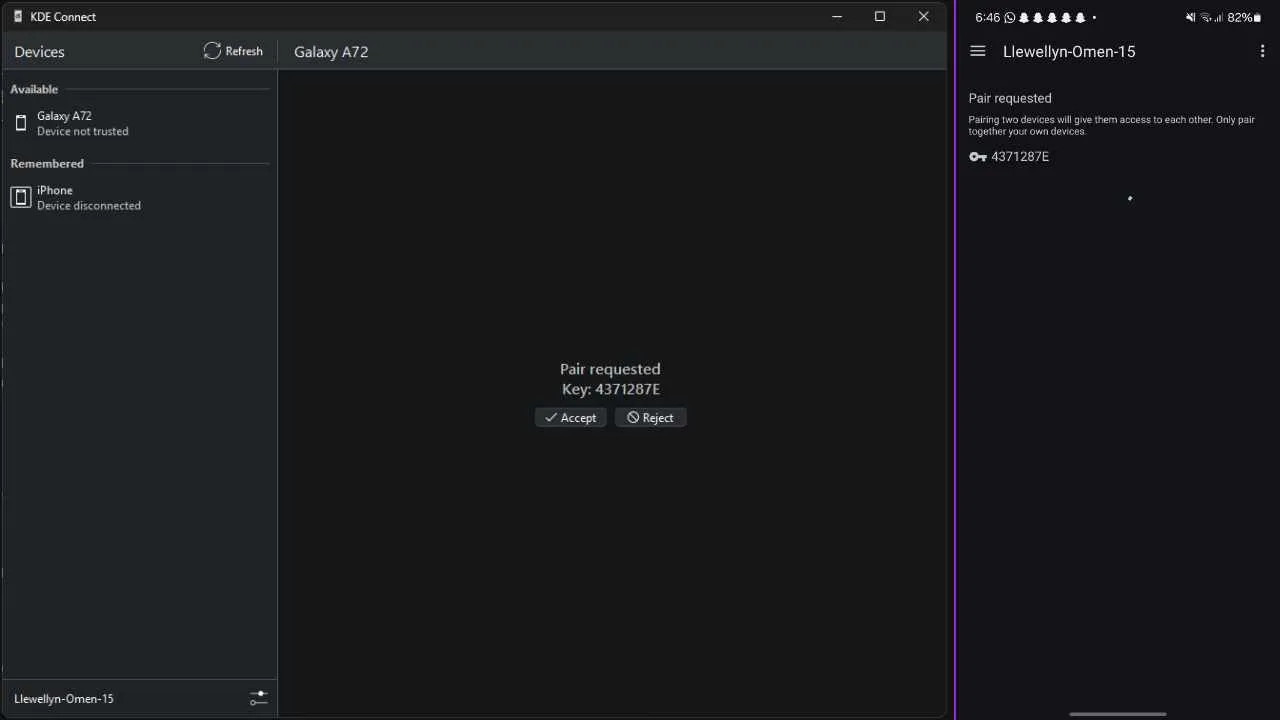
Now that they are best friends, let's test the basic control.
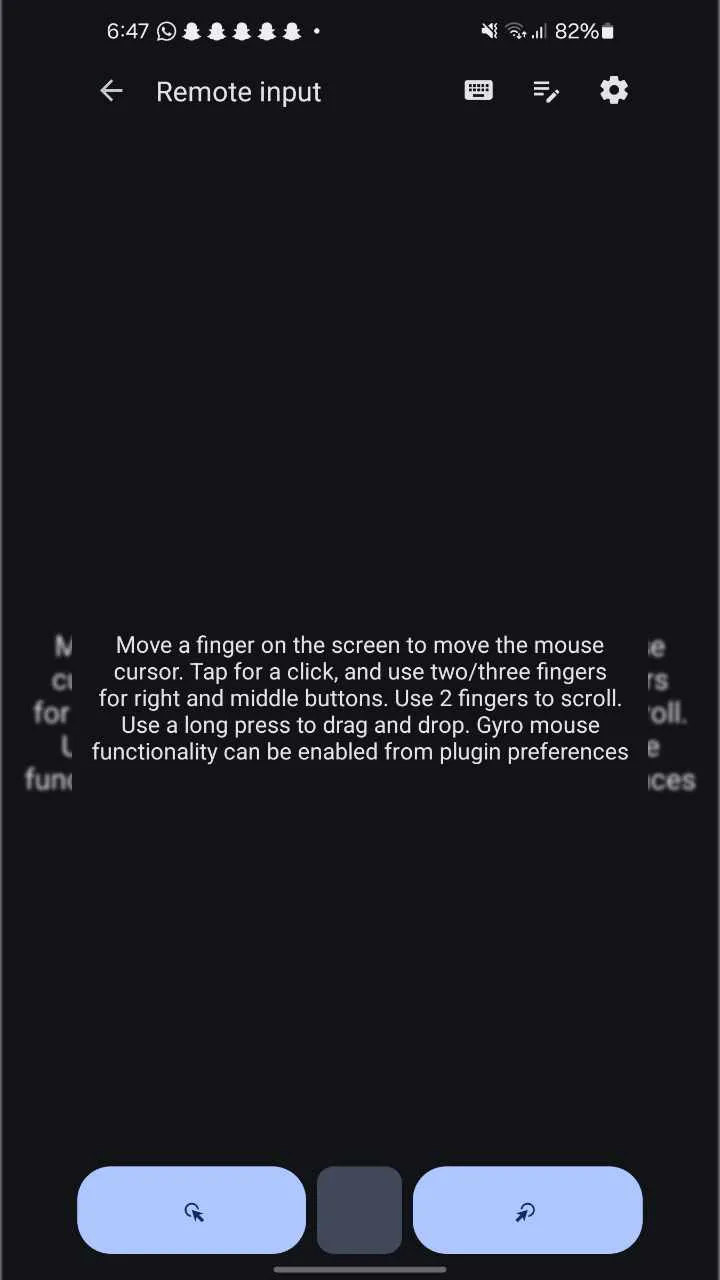
Now for the fun part—moving the mouse by waving your hand.
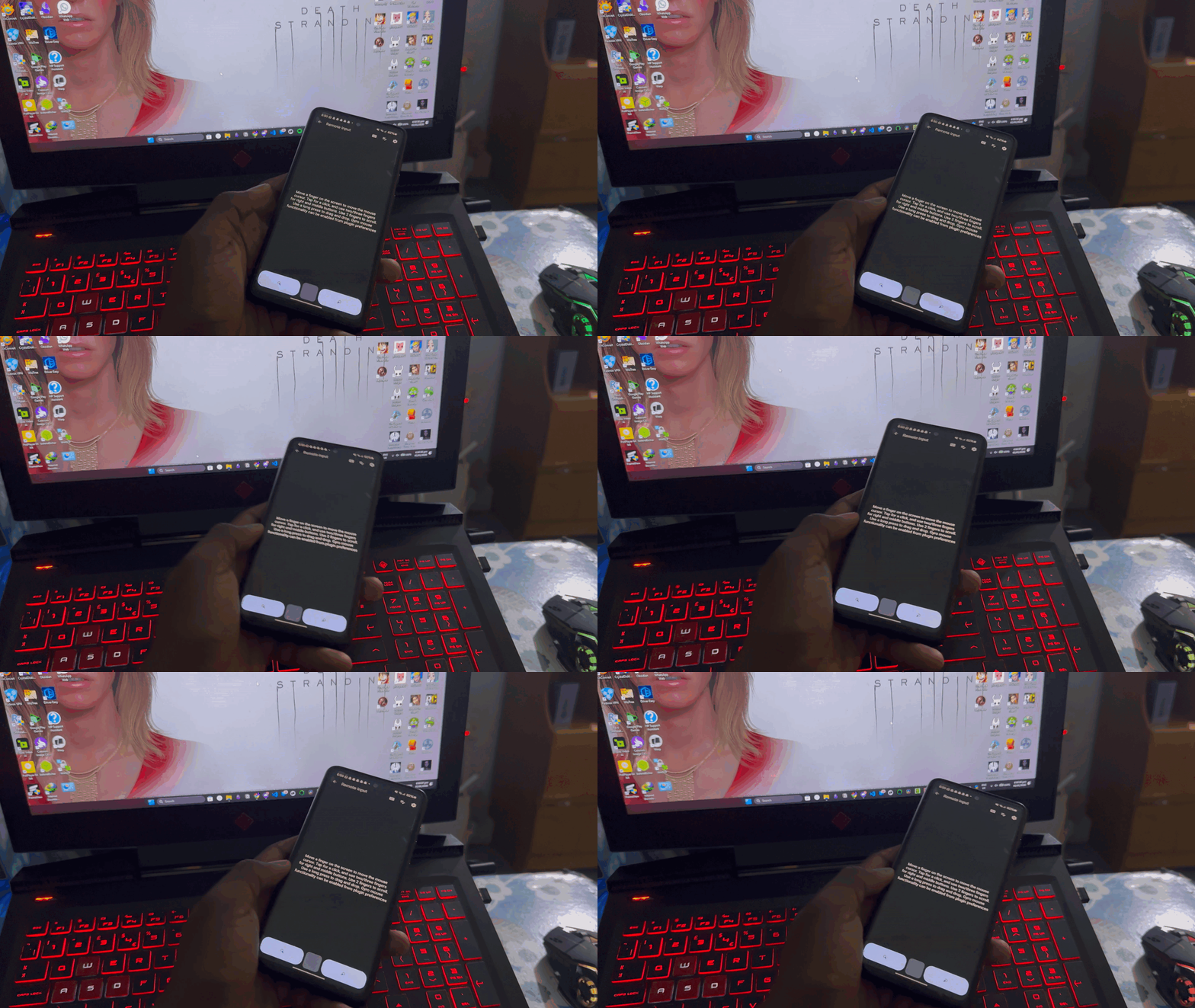
That’s it! Lift your phone up. Tilt it left, tilt it right, point it up or down. Your mouse cursor should glide across the screen following your movements.
Technology is great until it isn't. If you are waving your phone around and nothing is happening, check these common culprits:
The "Ghost" Device (Not Connecting): If your phone and computer can't find each other, it's usually a Firewall issue. Windows Firewall can be a bit overprotective. You may need to open your firewall settings and allow "KDE Connect" through. Also, double-check that you aren't using a "Guest" Wi-Fi network, as those often block devices from talking to each other.
The Jittery Mouse: Is the cursor lagging or jumping around? This is usually due to a weak Wi-Fi signal. Try moving closer to your router or kicking your sibling off the Xbox to free up some bandwidth.
The "No Permission" Stop Sign: If the screen works but the mouse won't move, check your phone's screen. Android is big on security; you might need to approve a pop-up asking for "Accessibility" or "Input Control" permissions to let KDE Connect take the wheel.
There you have it. You have successfully turned your smartphone into a motion-controlled air mouse. KDE Connect has a ton of other cool features (like syncing notifications and sharing clipboards), but honestly, nothing beats the feeling of scrolling through a webpage just by flicking your wrist.
Go forth and control your tech like a wizard!
Thanks for reading. If you try this out, let me know how it felt at any of our socials!

Learn how to use Chrome Remote Desktop to securely access your computer, provide remote support, and connect to headless Linux devices from anywhere.
Author
Anna Ablordeppey
Duration
4 min

Learn how to seamlessly mirror your Android device to your PC using Scrcpy over wireless debugging, plus an introduction to a custom tool to make the connection process effortless.
Author
Llewellyn Paintsil
Duration
4 min

Turn your Android device into a powerful Linux workstation. Follow this simple Termux tutorial to learn how to install the app, configure it properly, and start using essential terminal commands in minutes.
Author
Randy Dwomoh
Duration
3 mins
