
How to Fix Corrupted Video Files
Tutorial
Did your PC crash mid recording? Don't delete that corrupted file. This guide explains exactly how to restore broken recordings and fix audio sync issues using free tools like Untrunc and FFmpeg.
POSTS
Did your PC crash mid recording? Don't delete that corrupted file. This guide explains exactly how to restore broken recordings and fix audio sync issues using free tools like Untrunc and FFmpeg.
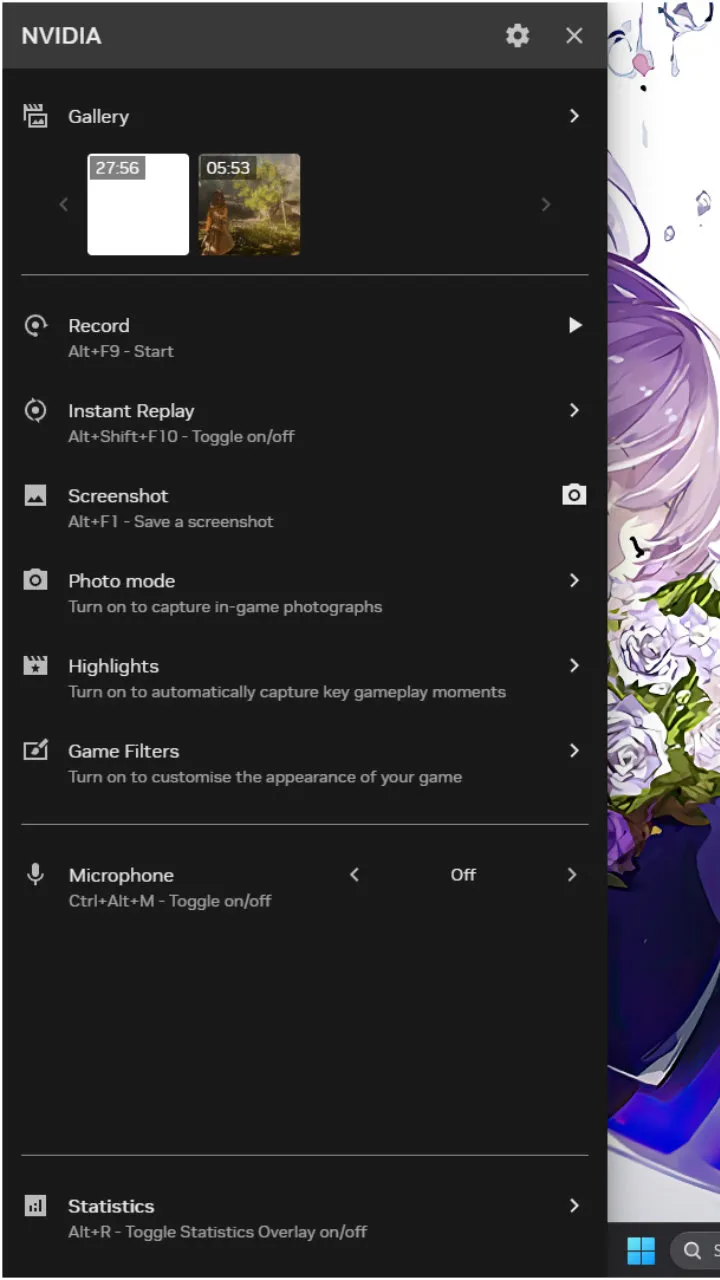
If you were recording gameplay specifically with the NVIDIA App and your PC crashed mid-game, you are likely staring at a large file, but it refuses to play.
This happens because the recording was never "closed" properly. The data is there, but the file structure is incomplete. This guide covers exactly how to restore that corrupted MP4 on Windows using two free tools: Untrunc and FFmpeg.
You need two specific pieces of software to perform this surgery.
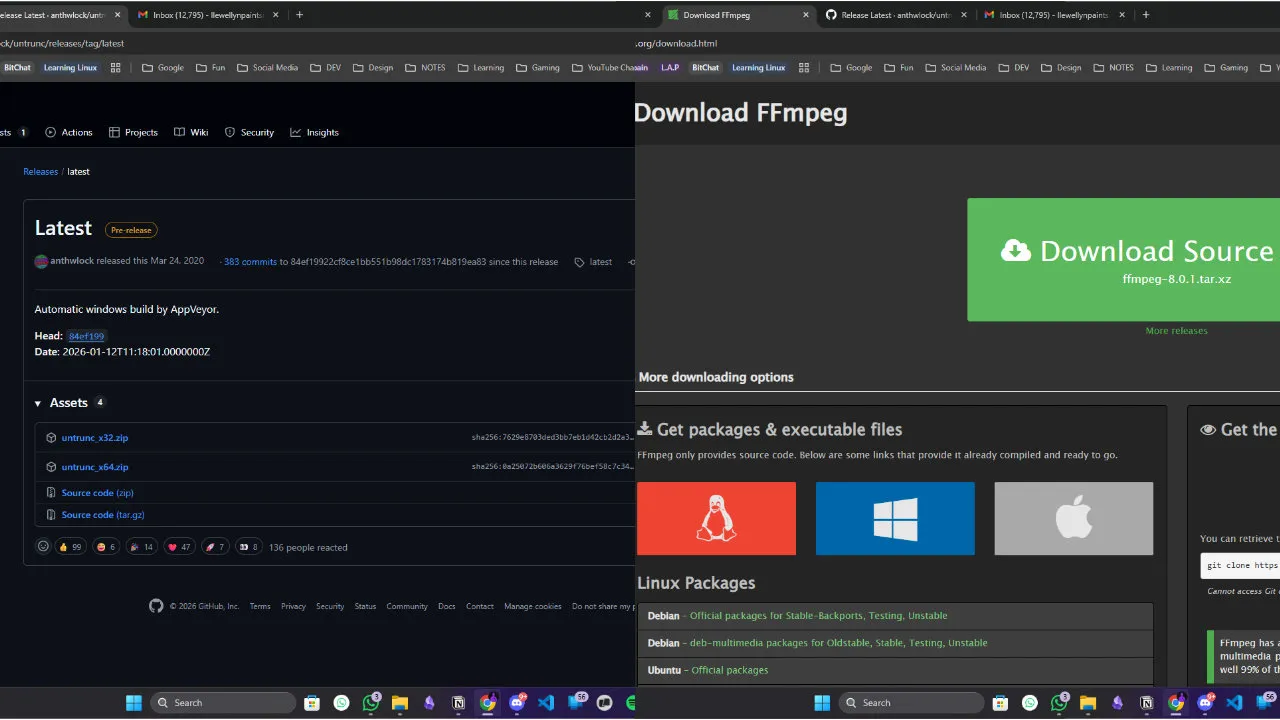
1. Untrunc (The Repair Tool) Download the latest version of Untrunc from GitHub. This is the primary tool that pieces the file back together.
2. FFmpeg (The Sync Tool) You need this to fix audio/video desync issues that usually occur after a repair.
choco install ffmpeg-full
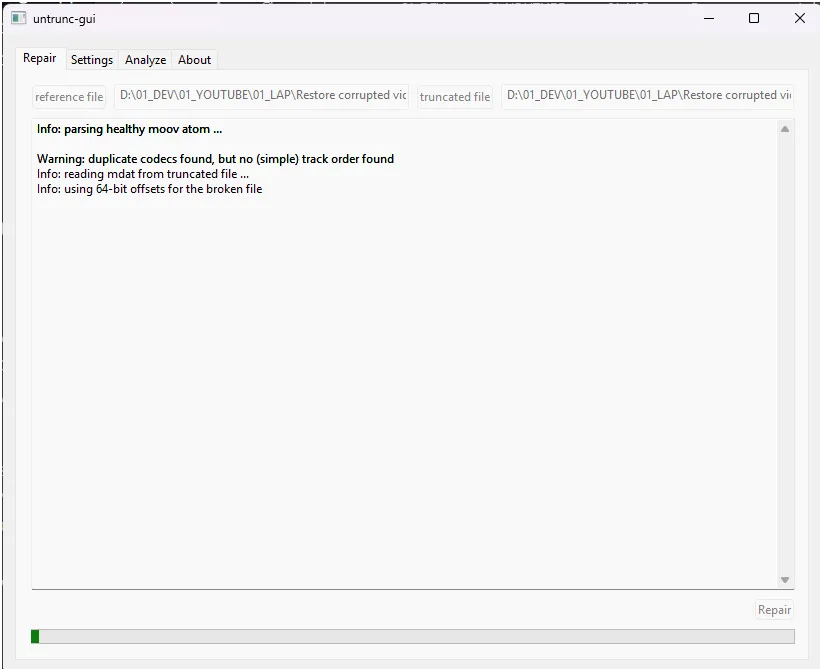
Untrunc works by comparing your broken file to a working one created by the exact same software and settings. It essentially copies the "header" from a working file and applies it to the broken one.
The tool will process the data and instantly generate a new file in the same folder, usually ending in _fixed.mp4.
Open the new _fixed file.
Why this happens: Because the crash occurred during active recording, the video stream and audio stream often end up with mismatched frame rates. The video player tries to play them, but they drift apart. You need to force a realignment using FFmpeg.
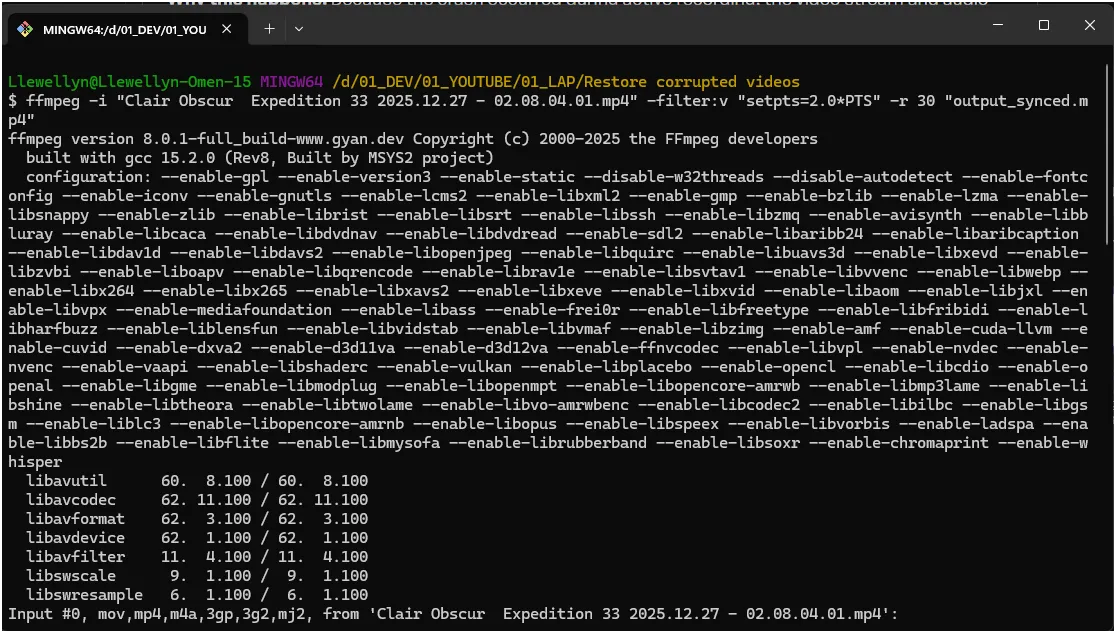
To fix the drift, we will manually adjust the timestamps of the video to match the audio.
_fixed.mp4 is located.ffmpeg -i "YOUR_FIXED_FILE.mp4" -filter:v "setpts=2.0*PTS" -r 30 "output_synced.mp4"
Replace YOUR_FIXED_FILE.mp4 with the actual name of your file.
If the output video looks unnatural (too slow or too fast), you need to adjust the variables in the command:
-r 30 (Frame Rate): This forces the output to 30 frames per second. If you were recording at 60 FPS, change this to -r 60.setpts=2.0*PTS (Speed): This stretches the time between frames.2.5*PTS).1.5*PTS or 1.0*PTS).Keep adjusting these two numbers until the movement looks natural and matches the audio.
For those who want to understand the mechanics behind the crash and the fix, here is the technical breakdown.
When your computer records an MP4 file, it is essentially writing a book. It writes the pages (video and audio data) sequentially to your hard drive. However, it does not write the Table of Contents (technically called the Moov Atom) until the exact moment you hit "Stop Recording."
When your PC crashed, the recording process was killed instantly. The "pages" (data) were written to the disk, but the "Table of Contents" was never created. Without that index, video players see a chaotic mess of data and refuse to play it because they don't know where the video starts or ends.
Untrunc acts like a surgeon. When you provide a Reference File, you are giving Untrunc a valid Table of Contents from a healthy file.
Even after the file is readable, the internal timing is often damaged. The video stream might think it has 100 frames that should play in 1 minute, while the audio stream thinks it has 2 minutes of sound.
The FFmpeg command we used manually overrides this:
setpts=2.0*PTS: This stands for Set Presentation Time Stamps. It mathematically alters the time gap between every single video frame. By multiplying by 2.0, we are effectively slowing the video down (stretching the time) to help it align with the audio.-r 30: This creates a constant frame rate, forcing the player to process exactly 30 frames every second, eliminating variable frame rate jitters caused by the crash.By combining these, you manually synchronize the visual speed with the audio speed.

Learn how to use Chrome Remote Desktop to securely access your computer, provide remote support, and connect to headless Linux devices from anywhere.
Author
Anna Ablordeppey
Duration
4 min

Learn how to seamlessly mirror your Android device to your PC using Scrcpy over wireless debugging, plus an introduction to a custom tool to make the connection process effortless.
Author
Llewellyn Paintsil
Duration
4 min

Turn your Android device into a powerful Linux workstation. Follow this simple Termux tutorial to learn how to install the app, configure it properly, and start using essential terminal commands in minutes.
Author
Randy Dwomoh
Duration
3 mins
