Ever wanted to watch a movie without leaving the comfort of your command line? Meet Lobster, the surprising tool that makes it possible. Learn how to turn your terminal into a media player in our latest guide.
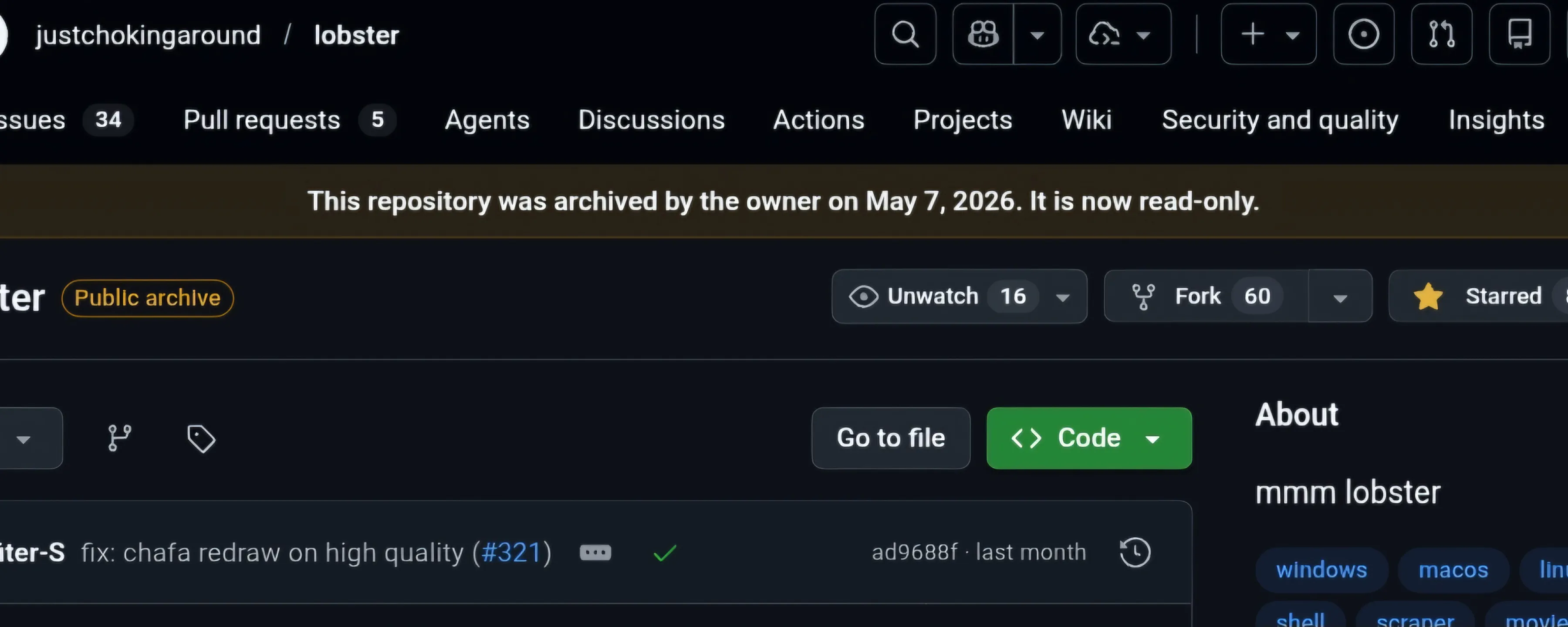
It’s the end of the road for Lobster. The developer decided to archive the GitHub repository. Since it’s no longer being maintained, it’s time to find some working alternatives.
The remainder of this blog post is for historical reasons. Enjoy 😊.
Imagine this: you're deep in a coding session, a massive script is running, and you've suddenly got a few minutes to spare. Your first instinct might be to Alt+Tab away to a browser, breaking your focus. But what if you didn't have to? What if you could just open a new tab in your terminal, run a simple command, and instantly dive into your favorite movies or series?
That's the magic of Lobster, a script that transforms your command line into an entertainment hub. In this guide, I'll show you exactly how to install and run it on almost any platform you can think of—from Windows and Linux to Android, Chromebooks, and even a Raspberry Pi.
What is Lobster?
Lobster is an open-source, command-line script that lets you search for and stream movies and series directly in your terminal. Created by the developer justchokingaround on GitHub, it uses the powerful media player mpv for playback, offering a lightweight, browser-free, and distraction-free viewing experience. No ads, no pop-ups, just pure command-line entertainment.
Windows Installation
To be honest, the Windows setup is the most involved, but if you follow these steps carefully, you'll be up and running in no time.
Prerequisites
Git Bash: You'll get this by installing Git.
Windows Terminal: Recommended for the best experience.
Scoop: A command-line installer for Windows.
mpv & fzf: Essential components for playback and searching.
Step-by-Step Guide
Install Git: Go to git-scm.com/downloads, download the installer, and run it. This will install both Git and Git Bash.
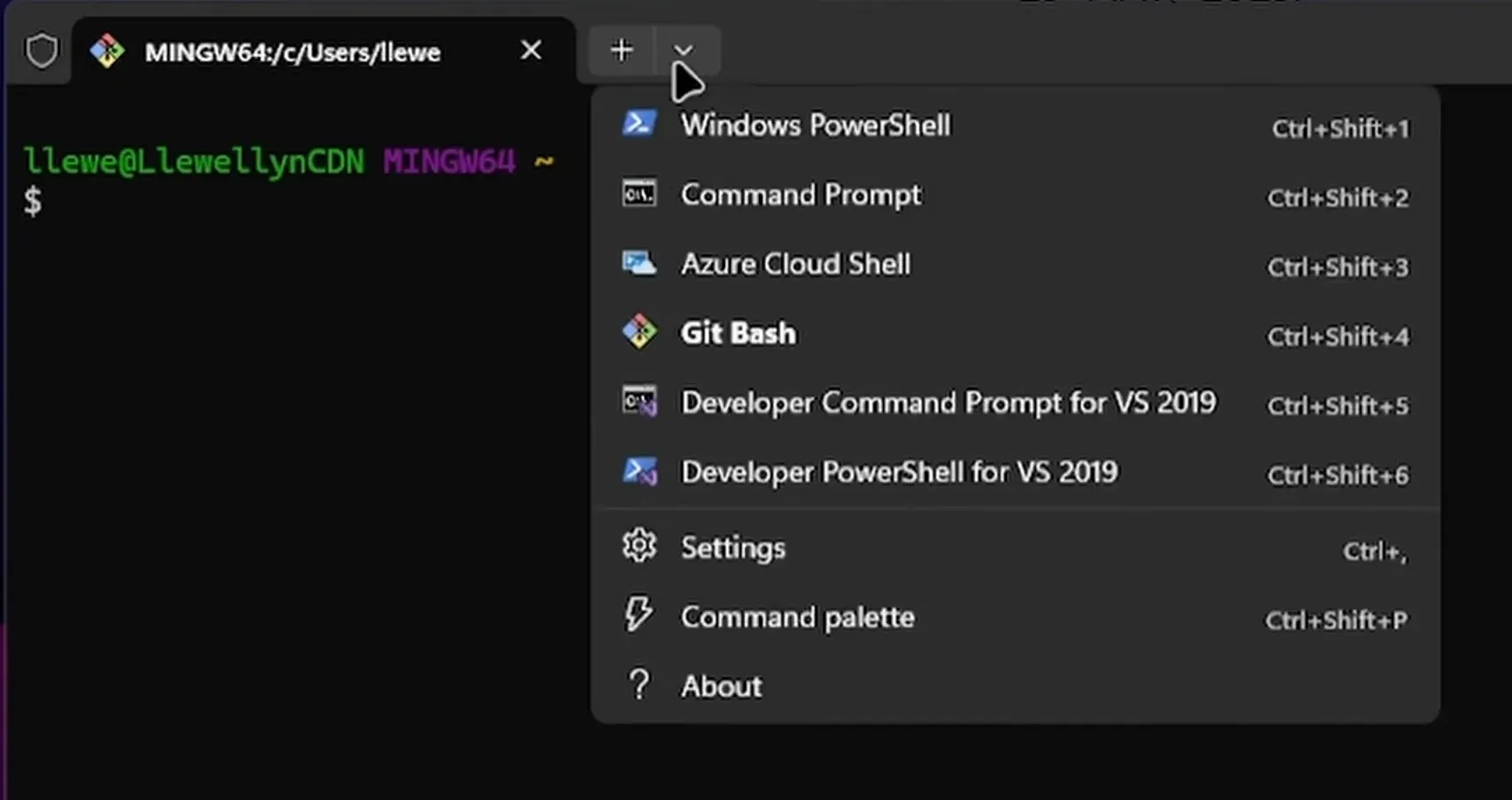
Install Windows Terminal: Open the Microsoft Store, search for "Windows Terminal," and install the app.
Install Scoop: Open PowerShell (not Git Bash yet) and run the following two commands one after the other to install the Scoop package manager.
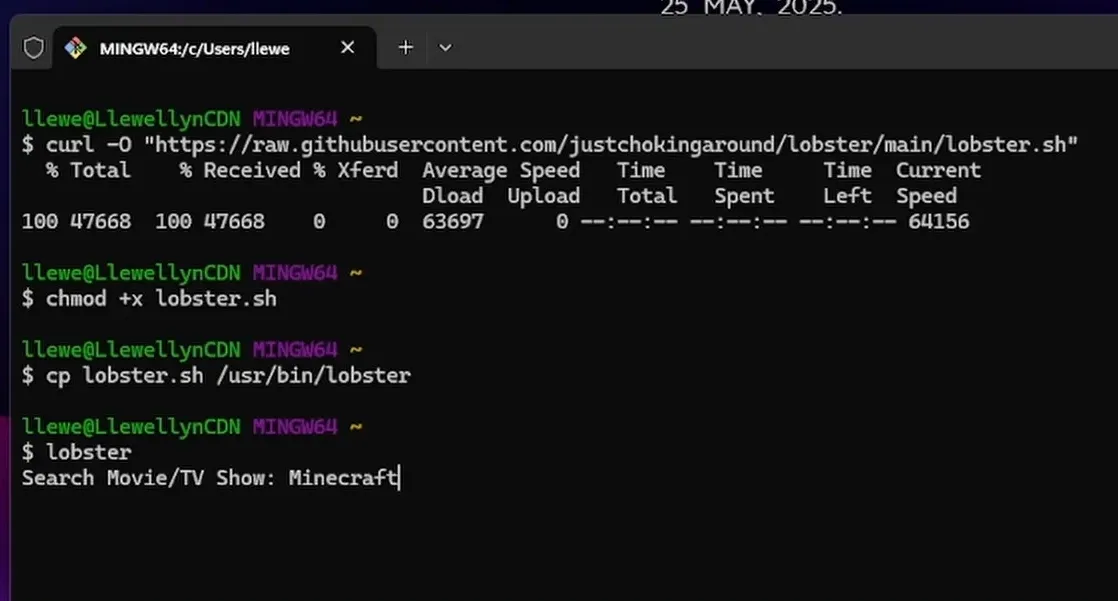
Make the Script Executable: Grant the script the necessary permissions to run.
chmod +x lobster.sh
Move the Script to Your System Path: To run the lobster command from anywhere, move the script to a directory in your system's PATH.
cp lobster.sh /usr/bin/lobster
Run It!: That's it! You're all set. Just type lobster in your Git Bash terminal to start watching.
lobster
ChromeOS / Chromebook Installation
I initially thought this wouldn't work, but after enabling the Linux environment on ChromeOS, it worked surprisingly well, despite a few bumps along the way.
Enable the Linux Environment: Go to Settings > Advanced > Developers. Turn on the "Linux development environment." This may take a few minutes to install.
Install Prerequisites: Once the Linux terminal is ready, you need to install mpv and fzf. I ran into errors until I installed both.
sudo apt update
sudo apt install mpv fzf -y
Install Lobster: You can install the script with a single command. This downloads it and moves it to the correct location.
Run and Enjoy: Type lobster in the terminal to launch the script. When I first attempted this, I encountered a bug that was reported on GitHub on the same day. Thankfully, the developer fixed it quickly. It now works perfectly.
Android Installation
Getting this to work on Android is quite simple with the help of Termux.
Prerequisites
Termux: Download the APK from F-Droid. The Play Store version is outdated.
Special Step for Android 14+: If you're on a newer Android version, you may need to install an additional package for Termux to interact with other apps.
pkg install termux-am
Install the Lobster Script: Copy and paste this one-liner into Termux.
Let the Show Begin: Type lobster to run it. It will automatically use the mpv-android app for playback.
Linux (Debian/Ubuntu-based) Installation
For desktop Linux users, the process is as straightforward as it was on the Chromebook. These instructions are for Debian-based distributions, such as Ubuntu or Pop!_OS.
(Hey, Arch users! I know you'll figure it out. Drop your one-liner install command in the comments on the video!)
Install Dependencies: Open your terminal and install mpv and fzf.
sudo apt update
sudo apt install mpv fzf -y
Install Lobster: Use this single command to download the script, make it executable, and move it into your path.
Run It: You're ready to go. Just type lobster and hit enter!
The Raspberry Pi Challenge
Can a tiny Raspberry Pi handle this? Let's find out! I tested this on a Raspberry Pi 4 running Raspberry Pi OS, and the answer is a resounding yes. Since Raspberry Pi OS is based on Debian, the process is nearly identical to the Linux installation.
Open the Terminal and update your packages.
sudo apt update && sudo apt upgrade -y
Install mpv and fzf.
sudo apt install mpv fzf -y
Install the Lobster script using the same one-liner.
Run lobster and enjoy. It runs perfectly! The power of Linux compatibility is on full display here.
Already Installed? How to Update and Fix Errors
The developer is actively working on the script. If you installed Lobster previously and are running into errors (like the bug I mentioned), you can easily update it to the latest version. Just run the script with the -u flag.
lobster -u
This simple command will fetch the newest version and fix any patched bugs.
Conclusion
There you have it! You're now equipped to turn your terminal into a lean, mean, movie-streaming machine. You can sit back, stay in your workflow, and enjoy your favorite shows without ever touching a browser.
In a future post, I'll explore other configurations you can use to improve your experience even more. Keep an eye out for that! Thanks for reading, and happy watching.
Driven by a transformative moment that sparked a deep fascination with technology, I've been captivated by all its facets, particularly the visual aspects of software and video.
Learn how to seamlessly mirror your Android device to your PC using Scrcpy over wireless debugging, plus an introduction to a custom tool to make the connection process effortless.
Turn your Android device into a powerful Linux workstation. Follow this simple Termux tutorial to learn how to install the app, configure it properly, and start using essential terminal commands in minutes.