If you are tired of visiting shady websites with a million pop-up ads just to read the latest chapter of One Piece or Jujutsu Kaisen, stop. There is a better way.
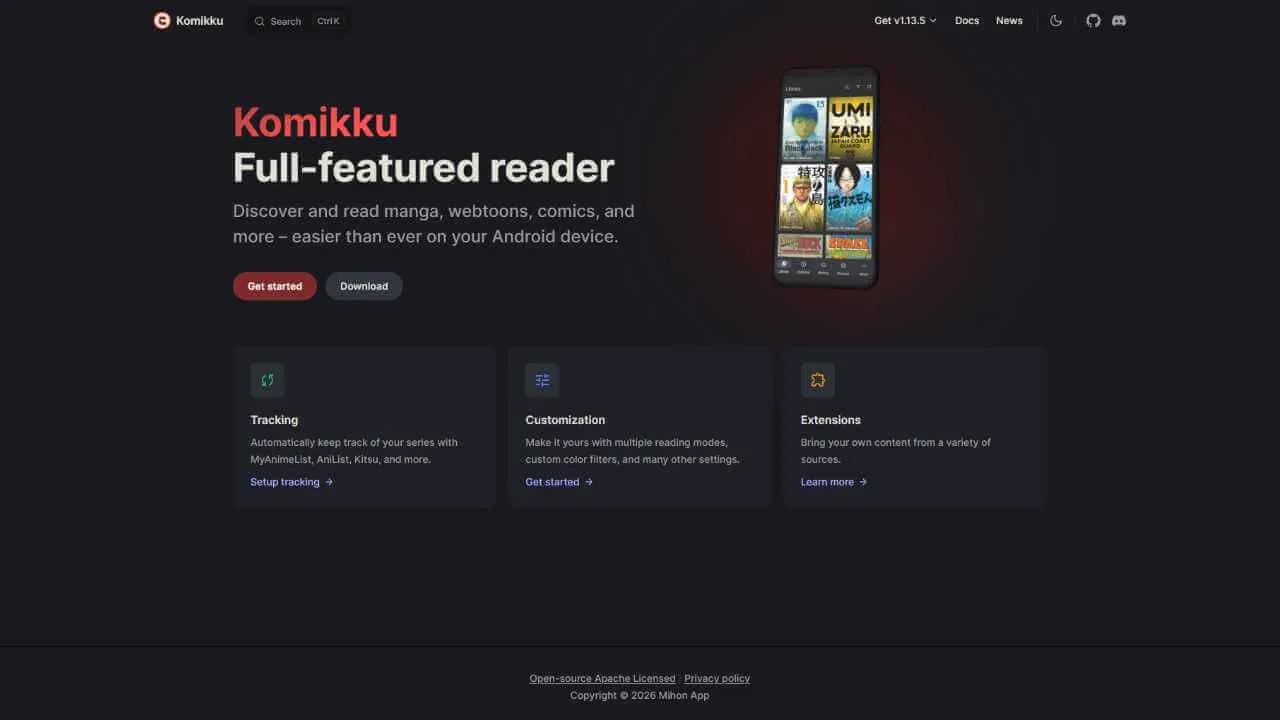
Meet Komikku. It is a free, open-source app that basically acts like a "web browser", specifically designed for comics, manga, manhwa and webtoons. It strips away the ads and the junk, formats the pages perfectly for your phone, and lets you download chapters for offline reading.
However, when you first install it, the app will look completely empty. Do not panic. This is by design (to keep the app legal and lightweight).
Here is your step-by-step guide to setting it up.
How to Use Komikku (The Setup)
Think of Komikku like a blank bookshelf. It doesn't come with the books; you have to tell it where to find them. You can do this by installing Sources/Extensions (For online reading) or importing your own Local Files (for stuff you already own).
Step 1: Install the App
Since this is a special enthusiast app built by independent developers, you won't find it on the standard Google Play Store (which restricts apps that scrape content). You have to "sideload" it.
Go to the Komikku GitHub page or their official website on your Android phone.
Download the APK file (under "Releases" for GitHub or a "Download" button on their site).
Open the file and install it. (You might need to allow "Install from unknown sources"; you can do it, it’s safe.)
Note: Your phone might pop up a warning saying, "For your security, your phone is not allowed to install unknown apps from this source." This is normal. On that pop-up allow the installation. It is safe; it just means the app wasn't vetted by Google's corporate team.
Step 2: The Magic "Extensions"
When you open the app, your library is empty. You have two main ways to fill it:
Option A: External Repositories (More Sources) You can add "External Repositories" to unlock hundreds of other sources. This is the way to go if you don't have any manga at all.
Note: This requires adding a specific repository URL to the app. For the full guide on finding and adding these URLs, visit the Komikku Documentation Site. (yuzono extentions repo)
- To add the extension repo to your app, go to settings in Komikku.
- Search for browse, then scroll down till you find "Extension repos"
- Add the repo you have, then restart your app to start seeing all your extensions in the browse tab
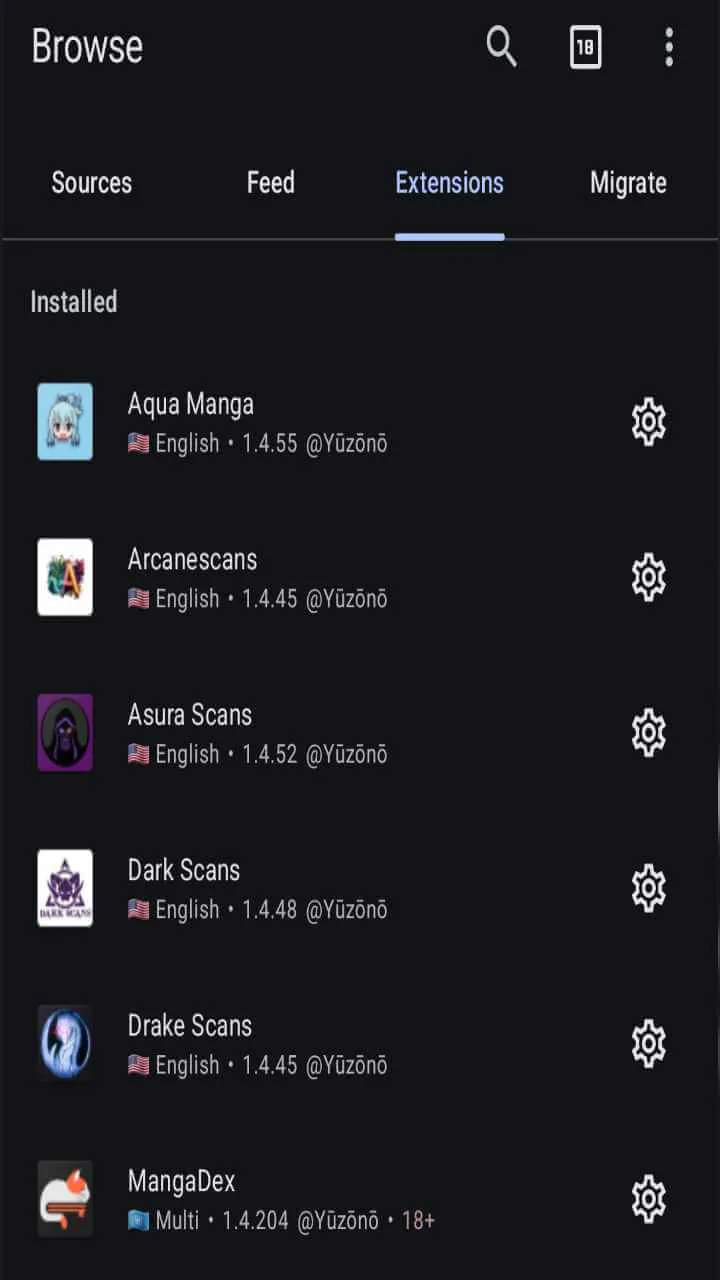
- From the Browse tab > Extension and install any extension of your choice (e.g., MangaDex)
Option B: Local Source (Your Own Files) Already have manga files (like CBZ, CBR, or PDF) on your phone? You don't need an internet connection.
- You need to place your files in the Komikku/local folder on your phone.
- Once they are there, go to Browse > Sources > Local Source to read them.
- Need help with folder structures? Check the "Local Source" guide on their Documentation Site.
Step 3: Find Your Manga
Now that you have a source, you can search.
- Stay in the Browse tab but switch to the Sources section.
- Tap the source you just installed (e.g., MangaDex).
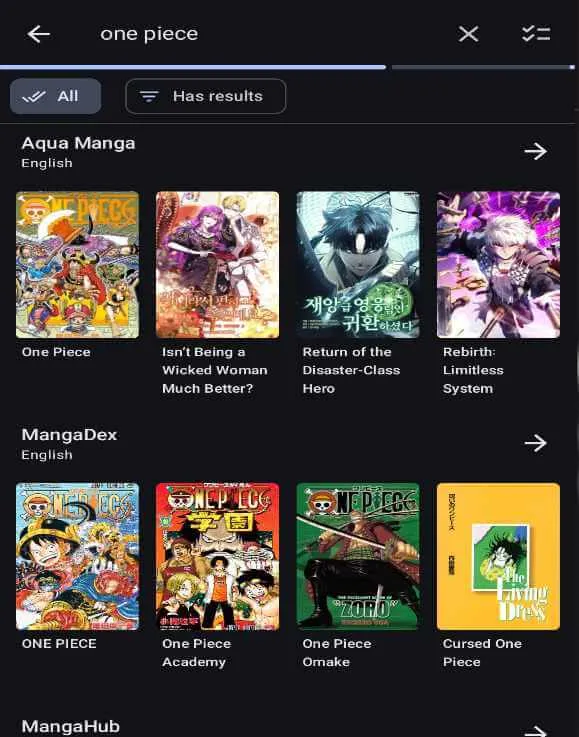
- Tap the Search icon and type the name of the manga you want (e.g., "Naruto").
- Tap on the cover art.
Alternatively
You can decide to search all the sources you have installed at once
- In the Browse tab, click on the search at the very top by the 18 box or click on the browse tab icon again.
- Search for the manga you want by typing the name. It would search all sources at once and give you the results
- Tap on the cover art.
Step 4: Add to Library
- You will see a button that says Add to Library (A heart icon is above it). Tap it.
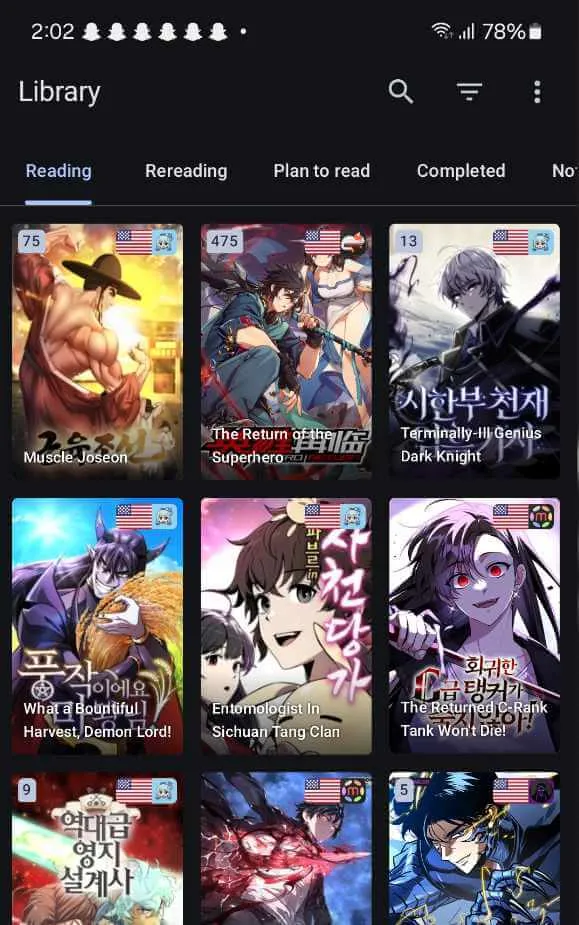
- Now, this manga lives on your home screen (the Library tab).
- Tap a chapter to start reading!
Why It’s Better Than a Browser
Why go through the trouble of installing this instead of using Chrome?
Zero Ads (Seriously):
Browsers on manga sites are a nightmare of pop-ups and redirected tabs. Komikku scrapes only the image files, meaning you get a pure reading experience without ever seeing an ad for "hot singles in your area".
Offline Reading (The "Plane Mode"):
You can hit the Download button on any chapter (or set it to auto-download new chapters). This is perfect for reading on the bus, a plane, or anywhere with spotty Wi-Fi.
Reading Modes for Everyone: Komikku adapts to what you are reading.
- Webtoon Mode: Stitches pages together into one long vertical strip (perfect for Solo Leveling).
- Right-to-Left: The classic Japanese manga style.
- Double Page: Turn your phone sideways (landscape), and it will show two pages at once, just like a real physical book.
Unified Library:
You might read One Piece on one site and Tower of God on another. In a browser, that's two different tabs. In Komikku, they sit side-by-side in one library, and the app checks both sites for updates automatically.
Power User Features (The Cool Stuff)
Once you get used to the basics, these features make the app feel like magic.
Automatic Tracking (MAL / AniList):
You can link your MyAnimeList, AniList, or Kitsu account in the settings. When you finish a chapter in Komikku, it automatically updates your profile online. No more manually editing your list to say you read Chapter 105.
Categories:
If you read a lot, your library can get messy. You can create custom categories like "Reading Now," "Completed," or "Plan to Read" to keep things organised. You can even drag and drop manga between them.
Global Updates:
Pull down on your library screen, and Komikku will scan every manga you have saved to see if a new chapter is out. If it finds one, it can download it instantly while you sleep.
Backup & Restore:
Getting a new phone? You don't have to find your manga again. Just go to Settings > Backup, create a backup file, and load it onto your new phone. Your entire library, reading history, and categories will be restored instantly.
Incognito Mode:
For those specific manga you don't want showing up in your history or updates... you can toggle Incognito Mode. We don't judge.
You can view the Patreon Video if you want a visual representation of what i'm saying
Happy Reading!