
Compress Videos using 8mb
Tutorial
Getting errors when trying to send videos? Don't use sketchy online converters. This guide explains how to self-host 8mb.local to compress high-quality clips privately using your own GPU.
POSTS
Getting errors when trying to send videos? Don't use sketchy online converters. This guide explains how to self-host 8mb.local to compress high-quality clips privately using your own GPU.

We have all been there. You just clipped an insane highlight in your favourite game, or maybe you recorded a quick bug report for your developer team. You drag the file into Discord, Slack, or WhatsApp, hit Enter, and... "Your files are too Big."
The dreaded upload limit is one of the most annoying hurdles on the internet. To get around it, most people turn to sketchy online converters. But uploading your personal videos to a random server is slow, degrades quality, and is a privacy nightmare.
There is a better way. Meet 8mb.local, a self-hosted tool that uses your own computer's power to shrink videos to the perfect size—without them ever leaving your network.
8mb.local is a free, open-source web application that runs on your computer. It is designed with a "fire-and-forget" philosophy: you give it a video and a target size (like 8MB, 25MB, or 50MB), and it handles the rest.
Because it runs locally, it is incredibly fast. It can utilize your graphics card (NVIDIA, Intel, or AMD) to compress your videos in seconds. Plus, since the file never uploads to the cloud, your data remains 100% private.
Unlike a standard Windows app, 8mb.local doesn't come as a simple .exe file yet. It runs inside a container using Docker. This might sound technical, but it’s actually quite straightforward.
First, you need the engine that runs the app.
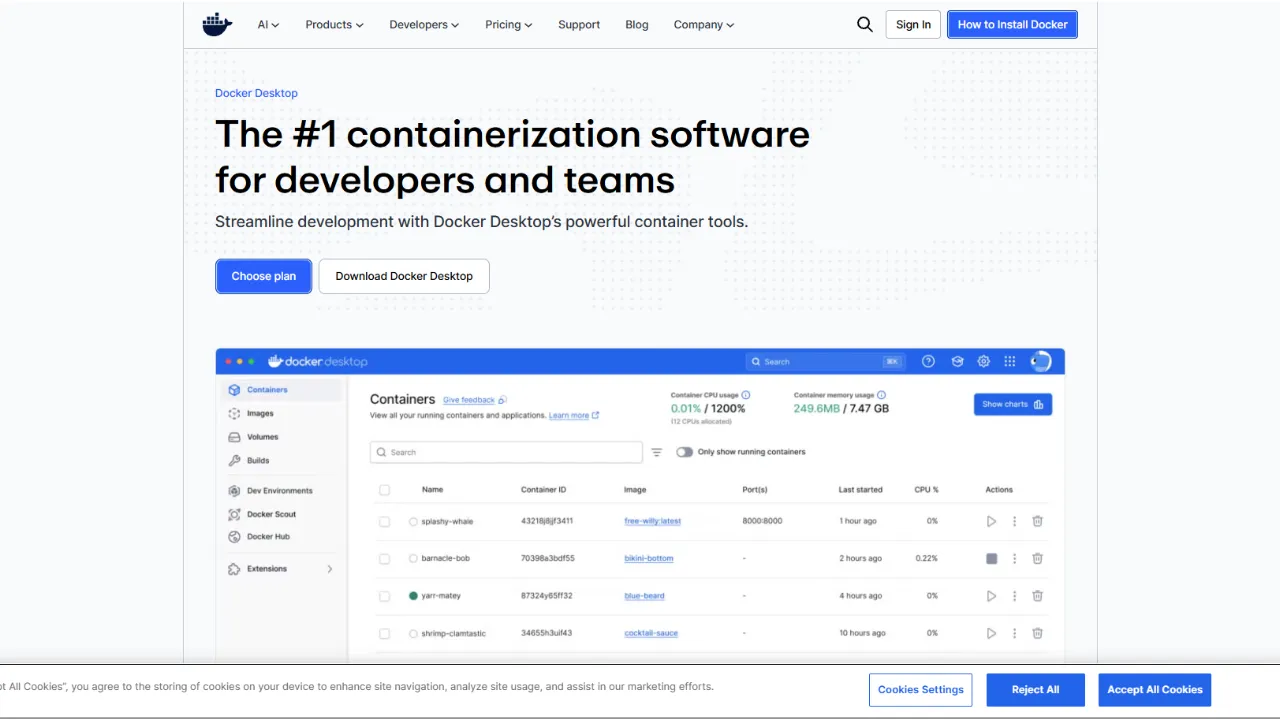
You don't need to download a zip file. You just need to tell Docker to grab the app for you.
Open your Command Prompt (Windows) or Terminal (Mac/Linux) and paste one of the following commands:
For most users (CPU only - works everywhere):
docker run -d --name 8mblocal -p 8001:8001 -v./uploads:/app/uploads -v./outputs:/app/outputs jms1717/8mblocal:latest
For Gamers (NVIDIA GPU Acceleration): If you have an NVIDIA graphics card, use this command to unlock blazing fast speeds:
docker run -d --name 8mblocal --gpus all -e NVIDIA_DRIVER_CAPABILITIES=compute,video,utility -p 8001:8001 -v./uploads:/app/uploads -v./outputs:/app/outputs jms1717/8mblocal:latest
For AMD/Intel GPUs If you have a AMD or Intel Graphics card, use this command:
docker run -d --name 8mblocal --device=/dev/dri:/dev/dri -p 8001:8001 -v ./uploads:/app/uploads -v ./outputs:/app/outputs jms1717/8mblocal:latestOnce the command is running, the app is live on your computer.
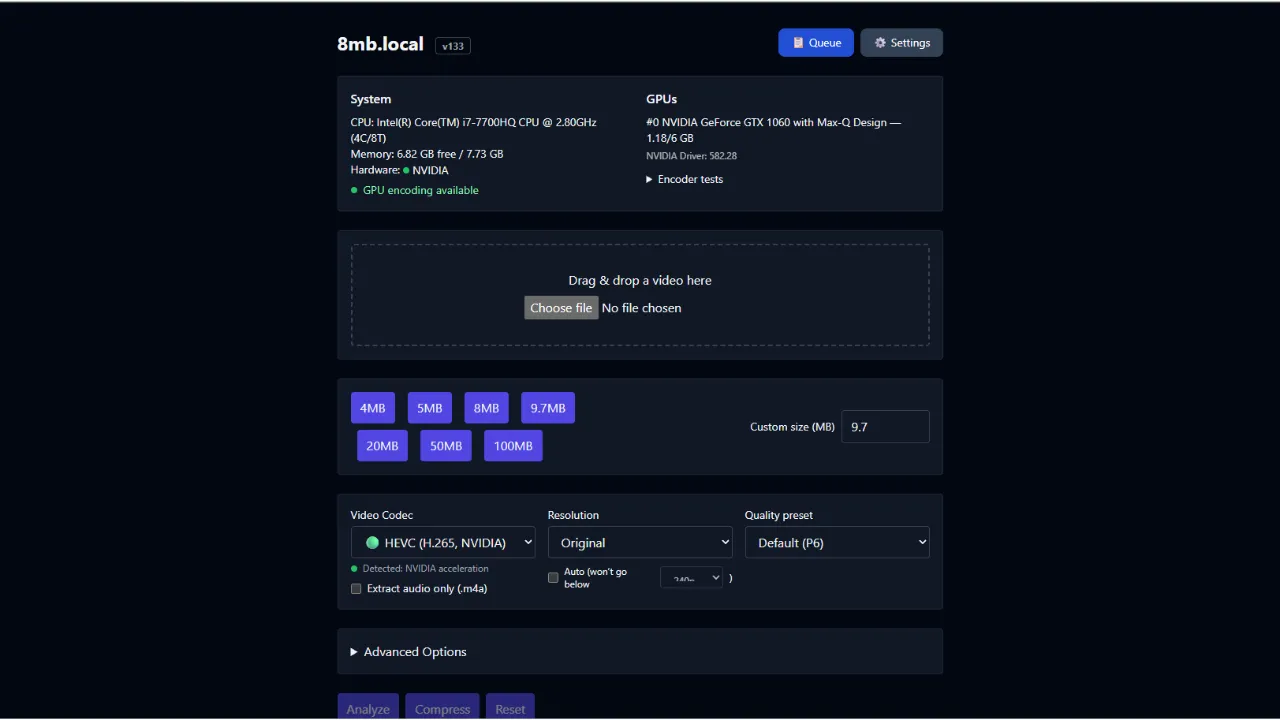
Open your browser and go to http://localhost:8001. You will see a clean, dark interface.
Drag and drop your video file anywhere on the screen. The app will instantly analyze it.
Select a Target Size. Click on 4MB, 5MB, 8MB, 100MB, etc, or enter a Custom size.
Click "Compress".
Disclaimer: This tool is open-source software. Always ensure you are downloading from the official repository.

Learn how to seamlessly mirror your Android device to your PC using Scrcpy over wireless debugging, plus an introduction to a custom tool to make the connection process effortless.
Author
Llewellyn Paintsil
Duration
4 min

Turn your Android device into a powerful Linux workstation. Follow this simple Termux tutorial to learn how to install the app, configure it properly, and start using essential terminal commands in minutes.
Author
Randy Dwomoh
Duration
3 mins

Do you live for mischief? Well then join the club. Learn how to use the Bluetooth Low Energy (BLE) functionality of Android smartphones to create Phantom Bluetooth Advertisements. Let’s create a little mayhem….
Author
Randy Dwomoh
Duration
4 mins
