We have all been there. You want to show something from your phone on your computer screen, record a quick mobile app demo, or just reply to messages without picking up your device.
The usual solutions involve messy USB cables that tether you to your desk or third-party casting apps that lag, lower the video quality, and bombard you with ads. Trying to get a clean, fast screen mirror shouldn't be a frustrating experience.
There is a better way. Meet Scrcpy, a lightweight, open-source tool that provides low-latency, high-performance display and control of Android devices natively from your PC. Best of all? You can run it entirely wirelessly.
Why You Should Use Wireless Debugging
By combining Scrcpy with Android's built-in Wireless Debugging feature, you get a powerful setup:
- No Cables Attached: Keep your phone charging across the room while you control it entirely from your laptop.
- Top-Tier Performance: Scrcpy is renowned for its low latency and high framerates.
- Completely Free: No premium versions, no watermarks, and no shady data collection.
How to Set Up Scrcpy Wirelessly
To get this working, you need your phone and your PC connected to the same Wi-Fi network.
Step 1: Download Scrcpy
First, grab the official tool.
- Head over to the Scrcpy GitHub repository.
- Download the latest
.zip release for Windows, or install it using your preferred package manager via their installation guide.
- If you downloaded the
.zip file, extract it to a dedicated folder on your computer.
Step 2: Enable Wireless Debugging on Your Phone
Next, we need to prepare your Android device.
- Go to your phone's Settings > Developer Options. (If you haven't enabled Developer Options yet, go to "About Phone" and tap your "Build Number" 7 times).
- Scroll down and toggle on Wireless debugging. You will have to allow it on your current network.
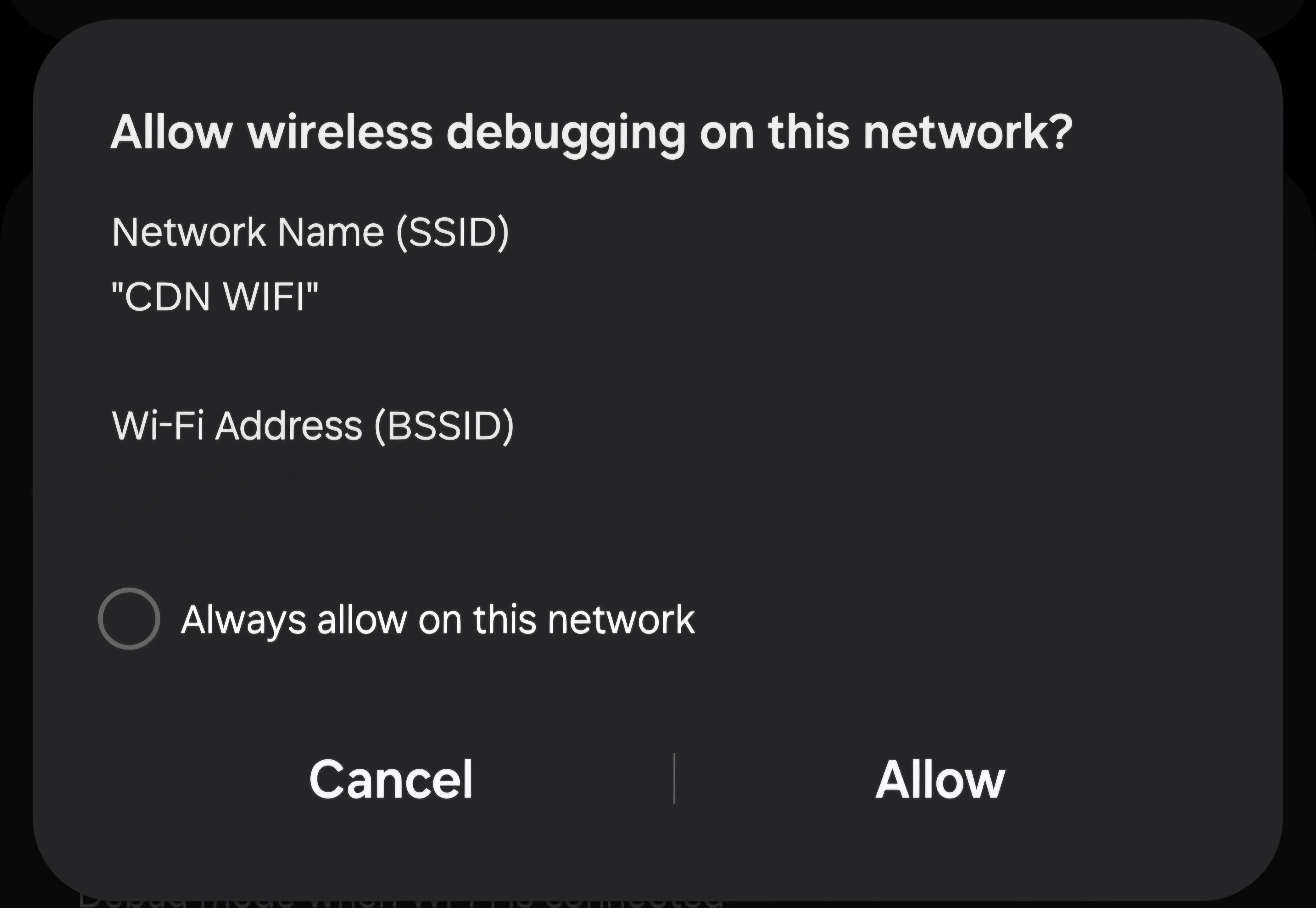
- Tap on the "Wireless debugging" text to open its menu.
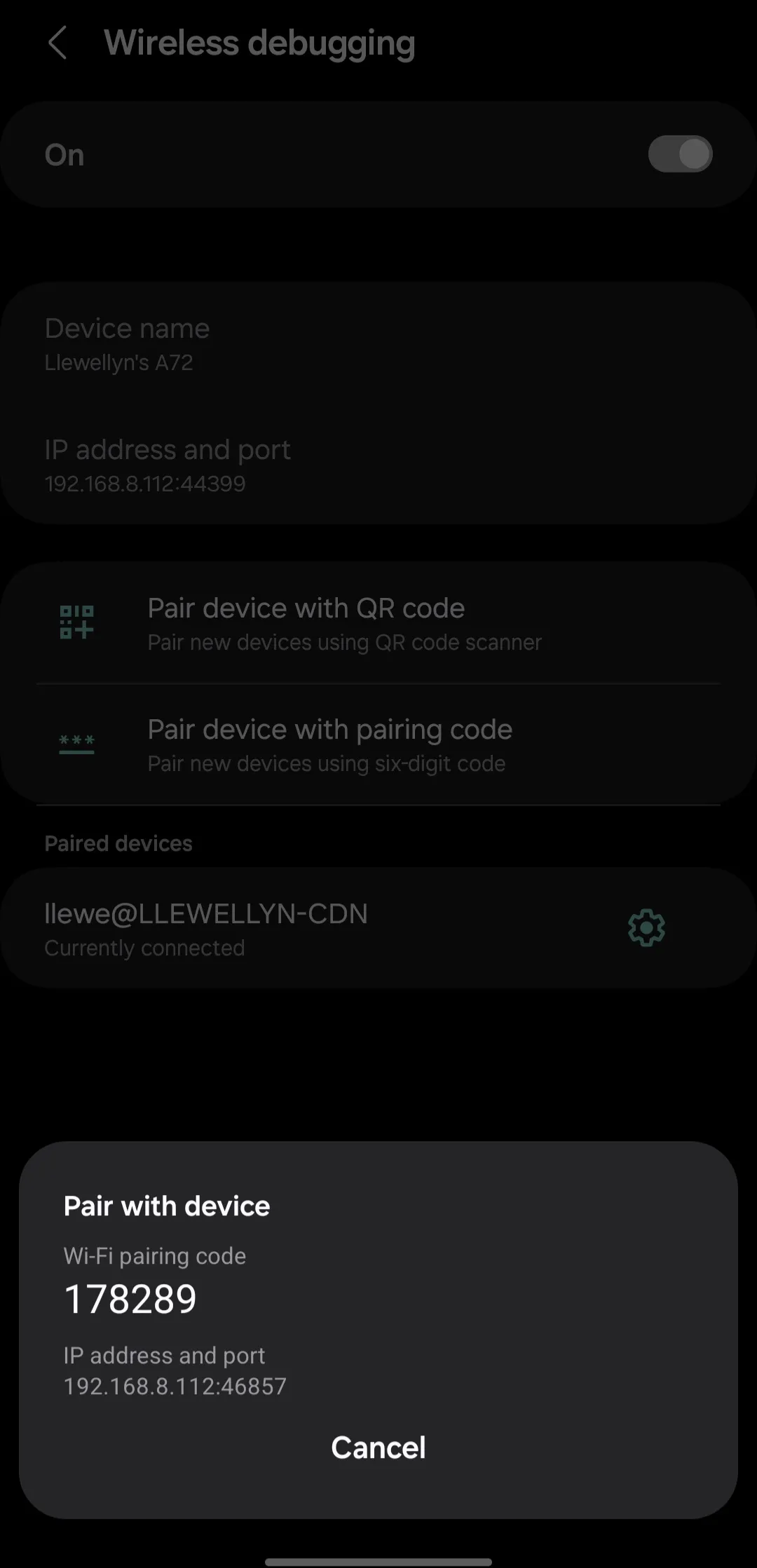
- Select Pair device with pairing code.
- Keep your screen on. You will see an IP address, a port, and a Wi-Fi pairing code.
Step 3: Pair and Connect from Your PC
Now, let's link the two devices.
- On your laptop, open your terminal or command prompt. (Note: If you downloaded the
.zip file, make sure to open the terminal directly inside the extracted folder and run every command below with ./ leading it).
- Run the pairing command using the exact IP and port shown on your phone's pairing screen:
- When prompted in the terminal, enter the pairing code from your phone screen.
- Once successfully paired, look back at the main Wireless Debugging screen on your phone. Find the active connection IP and port (this port will likely be different from the pairing port).
- Connect to that active IP and port by running:
- Finally, launch Scrcpy perfectly like normal by typing:
Your phone screen should now instantly pop up on your computer!
Troubleshooting: Unknown Host Service Error
If you get an error: unknown host service message after entering the pairing code, it usually means an older, background server is already running on your PC and conflicting with your new connection.
To fix this, kill the existing server by running:
Then, try the pairing process again.
A quick tip for the future: As long as your phone and PC are on the same Wi-Fi and Wireless Debugging is turned on, you don't have to re-pair it every time. You usually only need to run adb connect <ip>:<port> followed by scrcpy -e.
The Easier Way: Using Flect
If dealing with IP addresses, terminal commands, and ports every time sounds like a hassle, I built a tool to automate and simplify this entire workflow. It’s called Flect.
Instead of manually typing ADB commands, Flect gives you a clean web interface to handle the discovery and connection.
How to use Flect:
- Clone the repository or download a new release directly from the Flect GitHub page.
- Run the
run.bat file to start the tool.
- Make sure your phone and PC are connected to the same internet network.
- Open the Wireless Debugging menu on your phone and tap Pair device with pairing code.
- Open the Flect web interface and try the Discovery feature.
- If the auto-discovery doesn't locate your device, just manually type the pairing IP address, port, and pairing code into Flect. Then, do the same for the connection IP address and port.
- Click Start Mirroring.
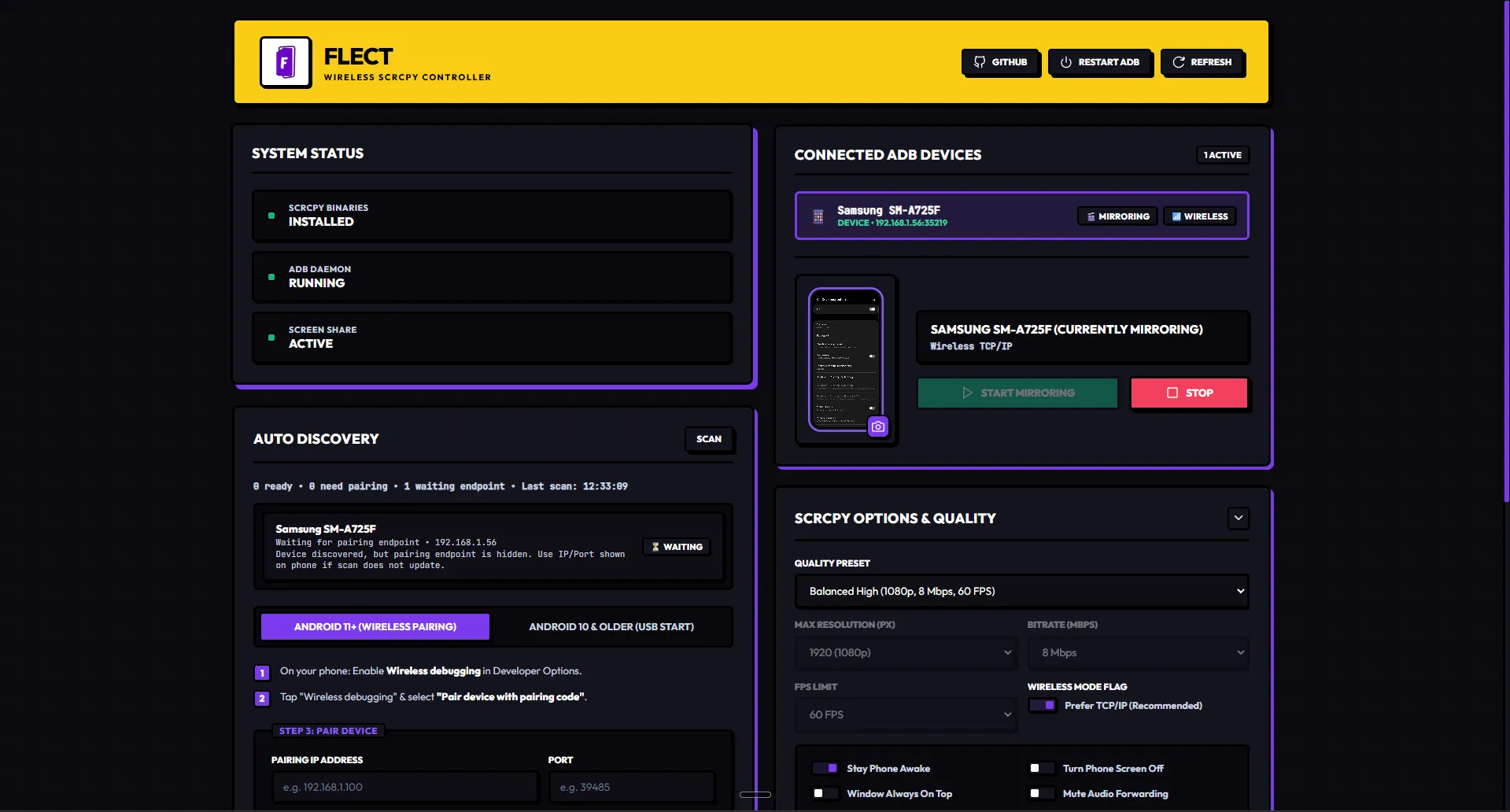
And that's it! Flect handles the command line work in the background so you can get straight to mirroring your screen with just a few clicks.