
How to install Ani-Cli
Scripts
Anime in the terminal... is that even possible?! YES! This proves it and shows you how to set up ani-cli. Prepare for a whole new way to watch your favourite shows!
POSTS
Anime in the terminal... is that even possible?! YES! This proves it and shows you how to set up ani-cli. Prepare for a whole new way to watch your favourite shows!

For anime lovers who also happen to be coders at heart, here's a cool new way to get your anime fix - right in your terminal! Introducing ani-cli, an open-source command line tool that lets you stream and watch anime without ever leaving your command line interface. In this post, we'll explore how ani-cli works, and how to install and set up this unique tool. This tool isn't only for coders, anyone can use it if they want to.
Ani-cli stands for Anime Command Line Interface. As the name suggests, it is an open-source command line tool for streaming and watching anime directly in your terminal.
Created by a developer named pystardust, ani-cli makes it possible to access a wide selection of subtitled anime without needing to install any large software or risk getting your device compromised by malicious sites. It brings the anime experience completely onto the command line interface (CLI).
Step 1: Install Git, mpv, and fzf.
Step 2: Copy and paste the following commands:
git clone "https://github.com/pystardust/ani-cli.git"
sudo cp ani-cli/ani-cli /usr/local/bin
rm -rf ani-cli
Step 3: Run the ani-cli command then search for the anime you want to watch.
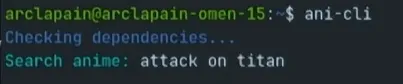
Step 4: Enjoy yourself
Step 1: Make sure your device is Android 8 or above.
Step 2: Install Termux, and mpv.
Step 3: Open termux and update your system pkg update
Step 4: Run the following commands to Install the tool.
pkg up -y
pkg install ani-cli
Step 5: Run the ani-cli command then search for the anime you want to watch.
Step 6: Enjoy watching your anime
Now the installation process on Windows is a bit annoying and longer than all the other platforms, but we can make it through it together.
Step 1: Install Windows Terminal, git(for Git Bash).
Step 2: You need scoop, so let's install it. Copy the following lines of code and paste them into your Windows terminal.
Set-ExecutionPolicy RemoteSigned -Scope CurrentUser
irm get.scoop.sh | iex
Step 3: Open git bash in your Windows terminal,
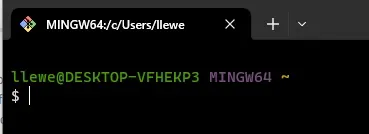
Step 4: in the terminal, using scoop, run the following commands
scoop bucket add extras
scoop install ani-cli
Step 5: Then in the same terminal, using scoop once again install mpv and fzf using the following command
scoop install fzf mpvStep 6: Run the ani-cli command then search for the anime you want to watch.
Step 7: Enjoy watching your anime.
So that's it, I couldn't test it on other platforms because I don't have those devices, so you can go to the GitHub Repo to see for yourself how to install it.

Turn your Android device into a powerful Linux workstation. Follow this simple Termux tutorial to learn how to install the app, configure it properly, and start using essential terminal commands in minutes.
Author
Randy Dwomoh
Duration
3 mins

Do you live for mischief? Well then join the club. Learn how to use the Bluetooth Low Energy (BLE) functionality of Android smartphones to create Phantom Bluetooth Advertisements. Let’s create a little mayhem….
Author
Randy Dwomoh
Duration
4 mins

A quick tutorial on turning an Android phone into a portable coding terminal using Termux, Git, and the GitHub CLI to securely manage code and review pull requests on the go.
Author
Llewellyn Paintsil
Duration
3 mins
